
How to Use Dynamic Offer Codes
What it is and when to use it
An offer code is a unique, dynamic promotional code that appears on your mailer. Use it when you want to:
- Track responses to specific campaigns by unique code per recipient
- Display long or formatted codes (e.g., SPRINGSALE2026SAVE20 instead of a generic placeholder)
- Verify that codes fit visually within your design before sending live mail
- Create urgency or exclusivity with personalized promotions
Placeholder syntax
Use the following placeholder in your creative:
<promocode>
How to set it up in the creative template
- Insert the <promocode> placeholder wherever the offer code should appear in your design
- Ensure adequate space around the placeholder for your longest expected code
- Select an appropriate font size and weight that maintains readability (see Design Guidance below)
Design guidance
Space and sizing:
- Allocate minimum 1.5 inches of horizontal space for codes up to 20 characters
- Use a monospace font for better code legibility and to prevent character confusion (0 vs O, 1 vs l)
- Minimum font size: 10pt for standard codes, 12pt+ if codes are a key visual element
Background and contrast:
- Place codes on a solid, contrasting background (white background with dark text, or dark background with white text)
- Avoid placing codes over images, patterns, or gradients that reduce contrast
Typography:
- Font weight: Medium (500) to Bold (700) for emphasis
- Avoid script or decorative fonts that reduce scannability
Platform configuration
When uploading a PDF with a dynamic offer code to the platform, you will see the formatting field “Proofing Value.” Formatting fields are editable while the creative is in draft (before submitting for proofing). After creatives are sent for proofing, formatting fields are locked. Any changes to formatting require a new upload.
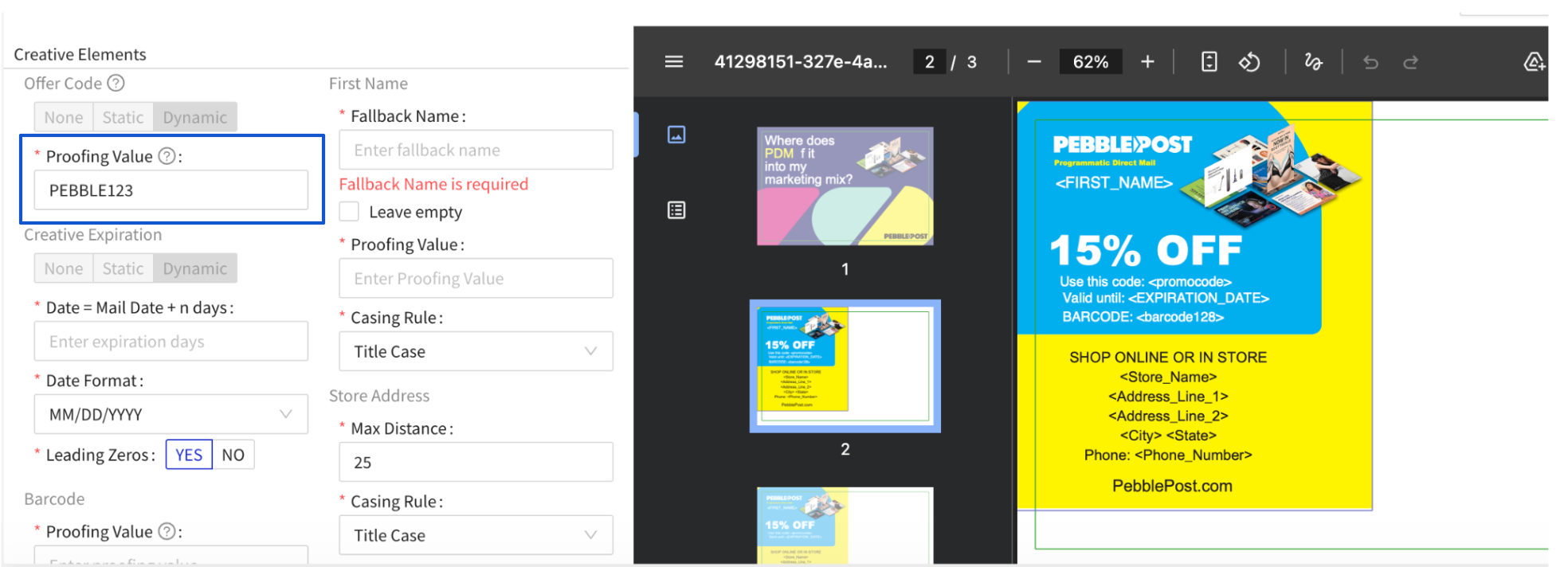
This field lets you specify the exact offer code string you want to see on digital and physical proofs.
- What it does: Displays a realistic example code on proofs so you can verify it fits visually in your design
- Examples: SPRINGSALE2026SAVE20, Q1EXCLUSIVE50, LOYALTY100
- When to use it: Whenever you're using long or formatted codes and want to confirm spacing and sizing before sending live mail
- What to expect: The proofing value appears only on proofs. Live mailings still pull real, unique codes from your dynamic element bank
Important: Different codes may have different character lengths. If your bank includes both short codes (8 chars) and long codes (20+ chars), set the proofing value to your longest code so you can verify it fits in the design.
Proofing behavior
- Digital proofs: Display the proofing value you specified, allowing you to review code placement and readability on screen
- Physical proofs: Print the proofing value so you can verify how it renders on actual cardstock, including color fidelity and print quality
- Live mail: Uses unique codes from your dynamic element bank, not the proofing value
Common errors and fixes
|
Error |
Cause |
Fix |
| Code appears cut off or wrapped | Insufficient horizontal space allocated | Increase the space in your design template; consider reducing font size if space is limited |
| Proofing value doesn't match my actual codes | Proofing value too short | Update the proofing value field to match the length of your longest live code |
| Code is hard to read on the physical proof | Low contrast or decorative font | Use a solid background with high contrast; switch to sans-serif or monospace; increase font size |
| Codes not appearing on live mail | Codes not uploaded to dynamic element bank | Verify all codes are in your element bank and the field is properly mapped in the template |