
How to Use Dynamic Barcodes
What it is and when to use it
A barcode is a machine-readable code that appears on your mailer. Use it when you want to:
- Enable direct response tracking via barcode scan (e.g., at a retail location)
- Link the barcode to a unique identifier (e.g., recipient ID, offer ID, tracking code)
Supported format
Barcode 128 only. Other barcode formats are not currently supported.
Placeholder syntax
Use the following placeholder in your creative:
<barcode128>
How to set it up in the creative template
- Insert the <barcode128> placeholder where the barcode should appear
- Allocate adequate white space around the barcode (minimum 0.25 inches on all sides)
- Ensure the barcode area has a clean, white background only (no color fills or patterns)
Design guidance
Space and sizing:
- Minimum barcode dimensions: 1.0 inch wide × 0.5 inches tall
- Ideal dimensions: 1.5–2.0 inches wide × 0.75–1.0 inches tall
- White space: Minimum 0.25 inches of clear white space on all sides of the barcode
Background:
- Must be placed on a solid white background only
- Never place a barcode over images, colors, or patterns—this prevents reliable scanning
- Ensure high contrast between the black barcode lines and white background
Placement:
- Corner or edge of the mailer; avoid centering over images or busy areas
- Ensure adequate clearance from other design elements
Platform configuration
When uploading a PDF with a dynamic barcode to the platform, you will see the following formatting fields:
- Proofing Value
Formatting fields are editable while the creative is in draft (before submitting for proofing). After creatives are sent for proofing, formatting fields are locked. Any changes to formatting require a new upload.
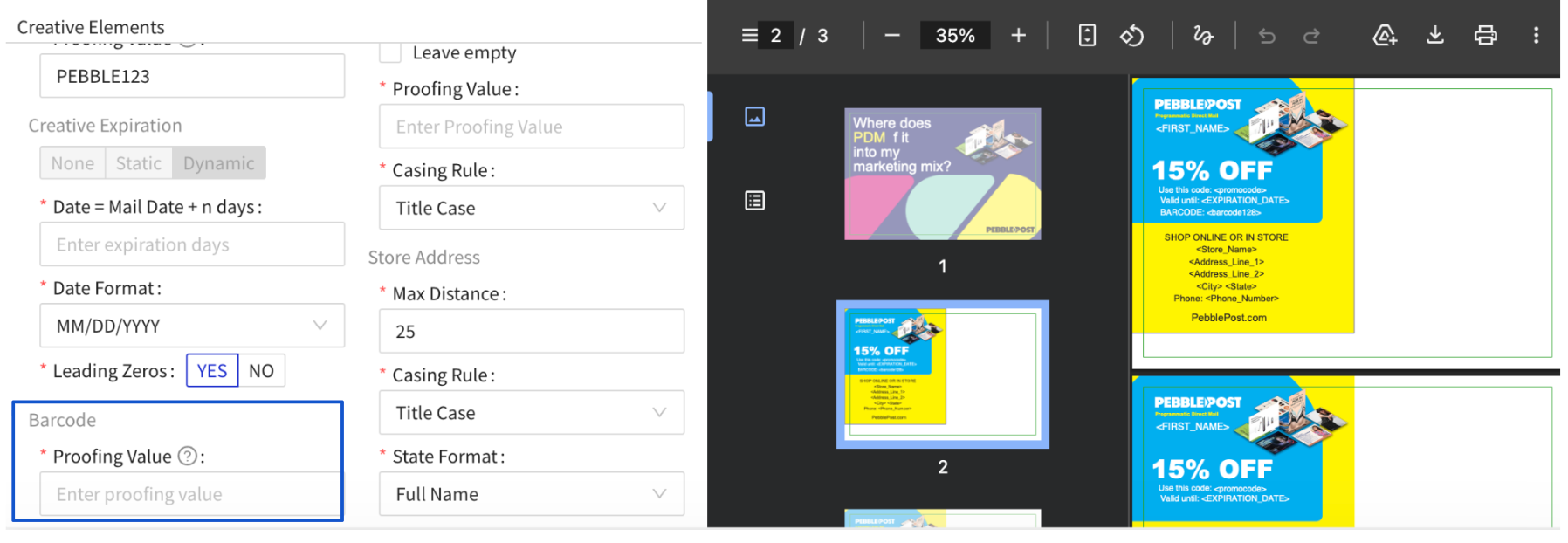
Field: Proofing Value
Specifies the barcode value for proofing.
- What it does: Sets a test barcode that appears on digital and physical proofs so you can verify rendering and scannability
- Requirements: Must be 40 characters or less
- When to use it: Always provide a proofing value with a scannable test barcode from your test library
- What to expect: The proofing value appears only on proofs. Live mailings use real, unique barcodes from your datasheet
Important: When using both Dynamic Barcodes and Dynamic Promo Codes, include both variables in the same datasheet with matching field headers:
| promocode | barcode128 |
| SAMPLE456 | 123SAMPLE456 |
Proofing behavior
- Digital proofs: Display the proofing value barcode so you can verify rendering and fit within your design space
- Physical proofs: Print the proofing value barcode so you can test scannability on actual cardstock
- Live mail: Uses real, unique barcodes from your datasheet—not the proofing value
Important limitations
- Format: Barcode 128 only
- Background: Must be on white background for readability
- Proofing value: 40 characters maximum
- Field mapping: Placeholder in PDF must exactly match field header in datasheet (e.g., <barcode128> in PDF, barcode128 as field header)
Common errors and fixes
|
Error |
Cause |
Fix |
| Barcode doesn't scan on the physical proof | Barcode is too small; print resolution is low; color background behind barcode | Increase barcode size; ensure it's printing on white background only; test with your scanner; check print quality settings |
| Barcode is distorted or lines are missing | Barcode is placed over a design element or background | Place barcode on a solid white background only; increase white space around it; move barcode to a cleaner area of the design |
| Barcode doesn't appear on live mail | Barcodes not uploaded to dynamic element bank; field not mapped | Verify all barcodes are in your element bank; confirm the field is properly mapped in the template; check that the placeholder syntax is correct |
| Proofing barcode value is wrong | Proofing value doesn't match your test data | Update the proofing value to a scannable code from your test library; regenerate proofs |
| Barcode is too large and crowds other elements | Design space not allocated properly | Reduce barcode size (minimum 1.0 × 0.5 inches); move other elements; redesign the layout to accommodate barcode white space |